
CostMiner allows you to organise jobs into folders so you can group projects and manage large numbers of estimates more easily. Folders help keep your job list structured and make it easier to locate projects quickly.
From the Jobs page, you can:
• Create folders and subfolders
• Filter jobs by folder
• Move jobs into folders using drag and drop
• Move multiple jobs at once
• Search for jobs within the selected folder
The main areas used for folder management are shown in the screenshot below.
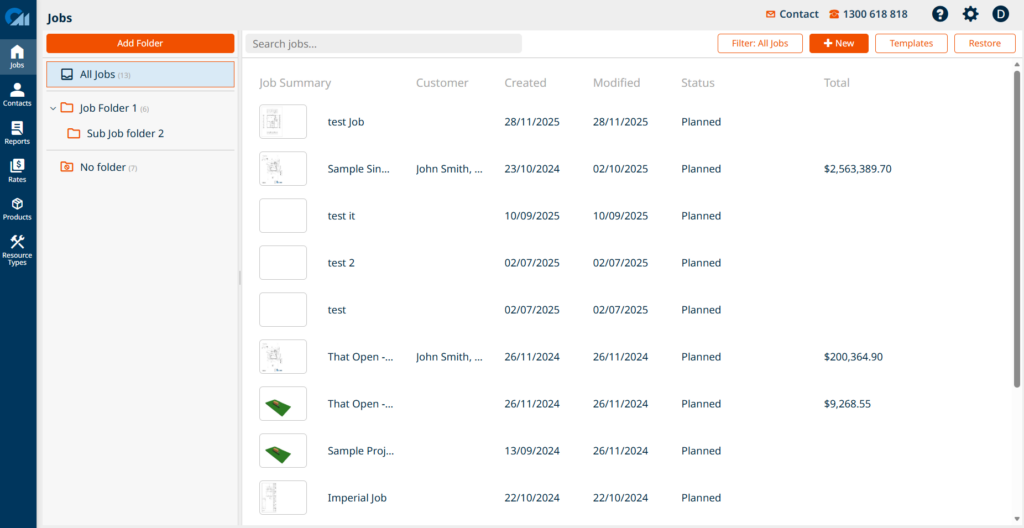
📸 Screenshot: Jobs page highlighting:
- Add Folder
- Folder list
- Search jobs field
- Job list
Creating a Folder
Folders allow you to group related jobs together, such as by client, project type, or year.
To create a folder
- Open the Jobs page.
- Select where you want the folder to be created.
- Click Add Folder.
- Enter the folder name.
- Press Enter to create the folder.
Folder creation behaviour
• If All Jobs is selected, the new folder will be created as a top-level folder.
• If an existing folder is selected, the new folder will be created as a subfolder inside that folder.
This allows you to build a folder structure to organise your jobs.
Viewing Jobs in a Folder
Selecting a folder filters the job list so that only jobs stored in that folder are displayed.
To view jobs in a folder
- Open the Jobs page.
- Click the folder name in the folder list.
The job list will update to show only the jobs inside that folder.
To return to all jobs, select All Jobs.
Moving Jobs into a Folder
Jobs can be organised by dragging them into folders.
To move a job
- Open the Jobs page.
- Click and hold the job in the job list.
- Drag the job to the desired folder in the folder list.
- Release the mouse button.
The job will now be stored in that folder.
Moving Multiple Jobs at Once
CostMiner allows you to move multiple jobs into a folder at the same time.
To move multiple jobs
- Hold the Shift key on your keyboard.
- Click the first job in the list.
- Click the last job in the range you want to select.
- Drag the selected jobs to the desired folder.
All selected jobs will be moved into the folder together.
This makes it easy to organise large numbers of jobs quickly.
Searching for Jobs
The Search jobs field allows you to quickly find jobs by name.
Search works within the currently selected folder.
To search for a job
- Select the folder you want to search in.
- Click the Search jobs field.
- Type part of the job name.
The job list will automatically filter to show matching results.
Example
• If All Jobs is selected, the search will look through all jobs.
• If a specific folder is selected, the search will only look through jobs in that folder.
This helps narrow down results when working with a large number of projects.
Tips
• Use folders and subfolders to organise jobs by client, project type, or year
• Use Shift + Click to quickly select multiple jobs
• Drag selected jobs directly onto a folder to organise them faster
• Use the Search jobs field to quickly locate projects
Summary
Folders in CostMiner provide a structured way to organise and manage jobs. You can create folders and subfolders, move jobs using drag and drop, move multiple jobs at once using Shift selection, and search for jobs within the selected folder.
Using folders helps keep your workspace organised and makes it easier to manage large numbers of projects.